
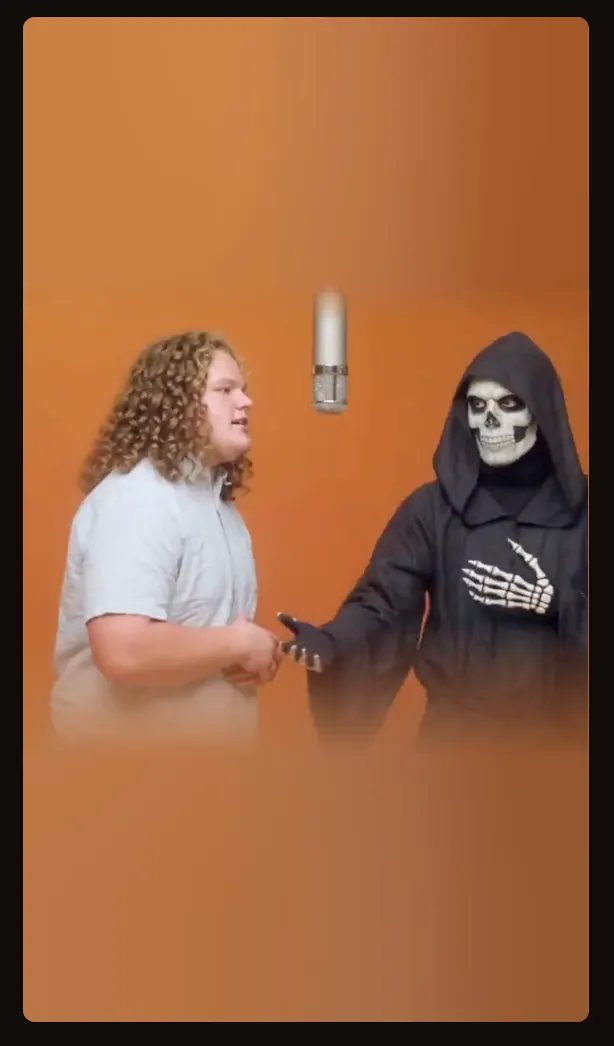
What you are recreating
The trend draws on Quavo and Takeoff's COLORS performance: two performers, an orange room, and a hanging microphone. You are creating an AI reinterpretation with a different cast. The reference preview shows the format; it is not your personalized result.
Understanding how to make the hotel lobby AI video starts with separating three things: who appears, how they move, and what you hear. A recognizable face does not guarantee identical choreography. An attached soundtrack does not guarantee precise lip synchronization.
Step 1: Prepare two clear portraits
Before deciding how to make the hotel lobby AI video, choose one person per image. Keep eyes, hairline, jaw, and shoulders visible. Avoid group photos, screenshots, heavy face filters, and hands covering the face. Similar lighting gives the pair a more coherent starting point.
Use a portrait showing clothing if you want the outfits from your photos. Check the upload area's supported file types and size limit. Obtain permission to animate both people. Read the photo privacy policy before submitting personal images; removing a local preview is different from requesting deletion after processing.
Step 2: Assign the left and right performers
The next part of how to make the hotel lobby AI video is casting. Add one portrait to Left performer and the other to Right performer. Check both thumbnails, then use the swap control if you want the opposite arrangement. Replace a mistaken photo before generating.
These labels describe this generator. Other tools can map attachments differently: Kapwing's tutorial assigns its first character sheet to the right. Follow the labels in the tool you use.
Step 3: Choose clothing and audio
When learning how to make the hotel lobby AI video, start with the original studio setup. Wardrobe lets you request outfits from your photos or from the original. Leave advanced details empty for your first attempt, so you can evaluate the portraits without extra instructions.
Audio offers the original soundtrack, silence, or new AI instrumental music. Pick the option that matches your next editing step. The source soundtrack preview is separate from the finished export. Listen to your result rather than assuming the chosen option produced exactly what you expected.
The template guide explains the original scene and casting concepts. A template supplies a starting structure; it does not promise perfect identity, fingers, clothing, or movement.
Step 4: Check the quote and generate
If you are researching how to make the hotel lobby AI video for free, check the live quote and your account balance. The welcome offer is conditional, and credits may not cover your selected setup. Read free generation conditions and current pricing before submitting.
Sign in, confirm permission, and review the displayed credit cost. Generate when the tool is ready. Follow the task status rather than submitting repeated attempts. A pending task or temporary refresh error is not a failed generation. If the service is unavailable, return later instead of changing photos repeatedly.
Step 5: Review and download the result
Knowing how to make the hotel lobby AI video includes checking the entire clip. Play it with sound, then muted. Look for face drift, swapped identities, distorted hands, and a microphone that changes shape. Check both performers when they turn or overlap. Judge more than the opening frame.
Download a completed result using the tool's download control. Open the saved file and confirm that it plays with the expected audio. For a vertical edit, preview the crop throughout the clip so neither performer disappears. Keep the original download. Keep your portraits and a note of the generation settings. When you retry later, these details help you compare versions without relying on memory alone.
Fix the problem you can see
A practical answer to how to make the hotel lobby AI video should help you improve a weak result. Change one thing at a time so you can tell what helped.
- Faces drift: use sharper, less obstructed portraits with similar lighting.
- People appear on the wrong sides: check the slots and swap control before another submission.
- Clothing looks wrong: review Wardrobe and whether your portraits show the intended outfit.
- Audio is missing: check mute controls, then listen to the downloaded file.
- Extra instructions conflict: keep the fixed orange scene and two roles; remove contradictory details.
Another generation uses a new quote. A completed clip that differs from your preference is not automatically a failed task.
Questions before you share
Can I do this on my phone?
Yes, you can open this browser page and select photos from your device. Check the previews after uploading. If a download opens in another tab, use your browser's save option and verify the file in your downloads.
Do I need a long prompt?
No. The original setup prepares the main instructions. Advanced details are optional. For how to make the hotel lobby AI video with different motion, Higgsfield's motion transfer explanation describes a separate reference video workflow. Text alone should not be treated as an exact choreography guarantee.
What about the song and lip sync?
Adding music cannot repair mouth movements automatically. Review timing and read the song and audio guide. YouTube's Shorts guidance distinguishes music added inside its tools from externally supplied audio. YouTube also requires disclosure for realistic AI depictions of people doing things they never did.