
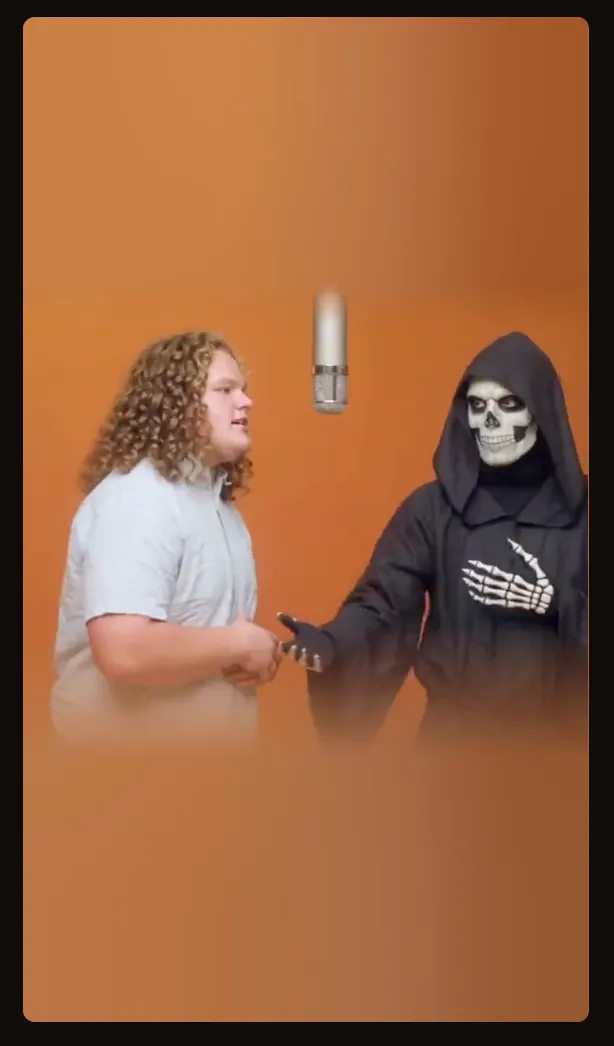
What a Hotel Lobby AI video recreates
A Hotel Lobby AI video places your duo in an orange studio performance. Choose Two photos for separate portraits or Shared photo for one picture of both people, keep Hotel Lobby (orange) as the background, add an occasion or optional topic, review the quote, and generate original vocals, music and video together. After completion, open your Hotel Lobby AI video and save the original Hotel Lobby AI video file.
The visual reference is Quavo and Takeoff's COLORS performance. With AI original song, your Hotel Lobby AI video creates new vocals, music and movement. With Hotel Lobby original song, the separate fixed-reference workflow restores the source recording after generation. In original rap, voices and picture are generated together. In reference mode, restored audio does not prove matching mouth movements. Inspect the complete Hotel Lobby AI video because precise lip sync is not guaranteed in either mode.
New photo and song screenshots below were captured from the current local interface on October 6, 2026. The remaining October 5 screenshots are explicitly historical. The current Hotel Lobby AI video form separates AI original song from Hotel Lobby original song. Portraits are AI-generated fictional adults. Task-status and download screenshots use local demonstration data with the actual new birthday API result. These Hotel Lobby AI video screenshots illustrate controls, not a customer checkout or another generation. Your Hotel Lobby AI video quote and availability may differ. Tap a screenshot to view it at full size.
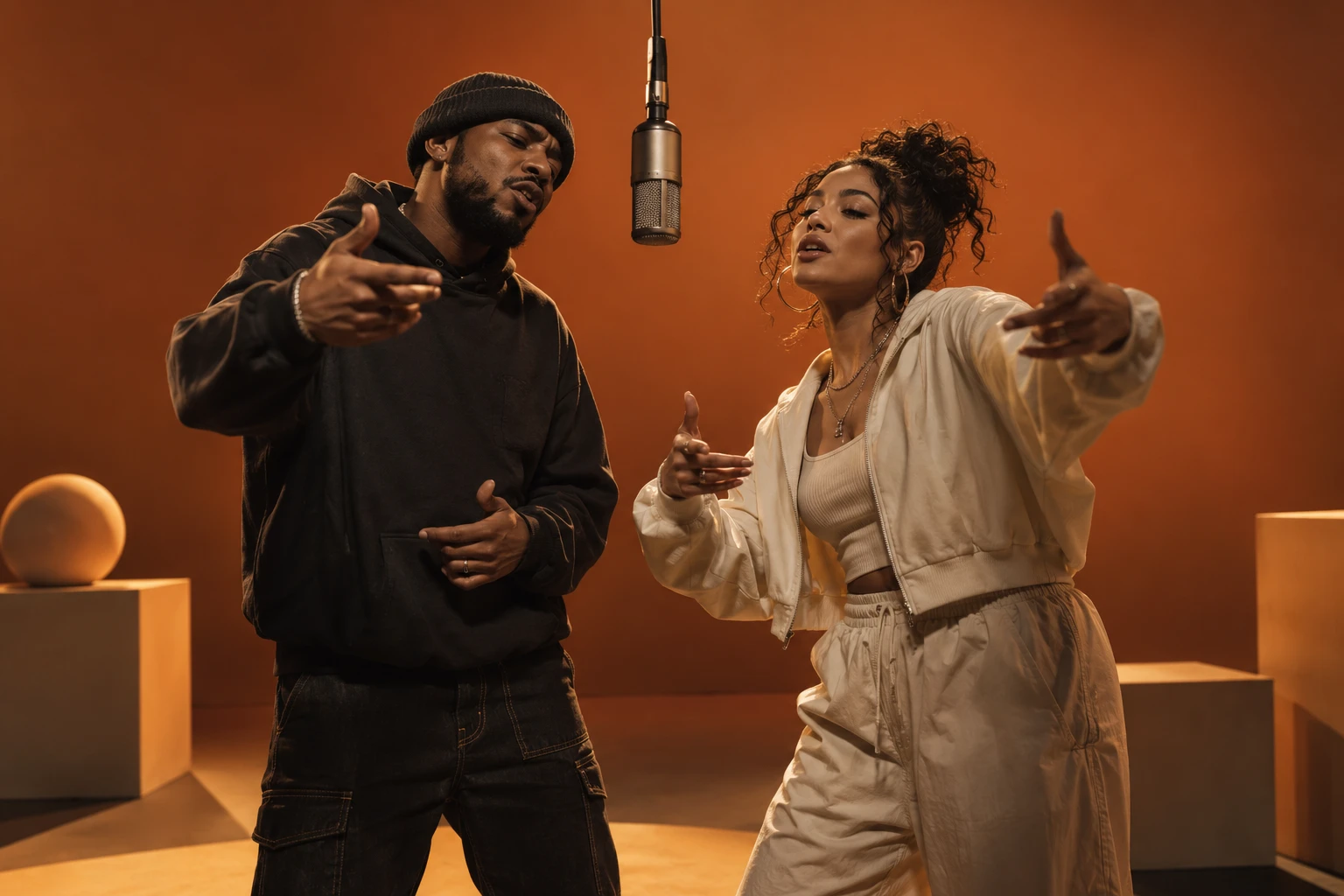
AI-generated Hotel Lobby AI video concept, separate from the interface screenshots below.
A real current-model result to inspect first
The Hotel Lobby AI video Mini example below used two imagegen portraits of fictional older adults and the topic “Two longtime friends celebrate being together again with a joyful original rap.” It was submitted through the same configured supplier API with photos only: no source video, audio reference or voice sample.
The case record saves the inputs, topic, model and measured file. Three sampled frames show the woman in cream on the left and the man in navy on the right. This Hotel Lobby AI video API demonstration verifies a returned file; the October 6 History screenshots illustrate controls using the new birthday result and are not a claimed customer checkout for this job. The birthday walkthrough records another new Mini request with a personal topic.
Make a Hotel Lobby AI video in your phone browser
You can prepare a Hotel Lobby AI video here without installing a generator app. Open the website in your phone browser, tap Upload a photo and select supported pictures from your device. Use Safari on iPhone or Chrome on Android when following their official download instructions. HEIC files need a supported exported copy; renaming an extension does not convert the photo.
The complete Hotel Lobby AI video workflow below covers both photo modes and songs. For phone-specific file locations and saving, use the phone browser guide. Creating a Hotel Lobby AI video still requires an account, a ready quote and enough usable credits; browser access does not grant a free render.
Step 1: Prepare Hotel Lobby AI video portraits
Open the creator at the top of this guide or on the Hotel Lobby AI video maker. For a Hotel Lobby AI video, use JPG, PNG, or WebP, up to 5 MB per image. Each dimension must be between 300 and 12,000 pixels. Convert HEIC photos before uploading for a Hotel Lobby AI video. Choose clear faces without sunglasses, masks, heavy filters, or hands covering the mouth.
Branch A: Two portraits for your Hotel Lobby AI video
Select Two photos. Click Upload a photo under Left person, then choose the first portrait. Repeat under Right person. You can also drag one file into each Hotel Lobby AI video slot. A Hotel Lobby AI video can use people photographed separately. Similar lighting and visible shoulders help give your Hotel Lobby AI video consistent references.
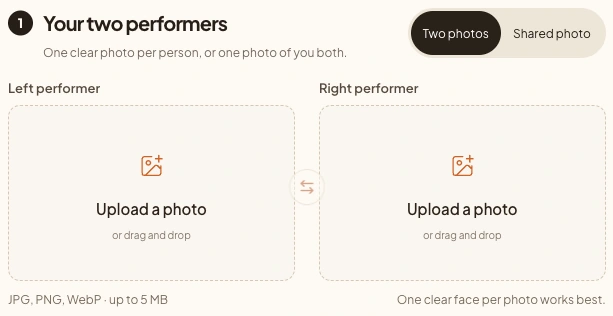
Hotel Lobby AI video upload: select Two photos, then add one portrait to each labeled slot.
Branch B: A shared photo for your Hotel Lobby AI video
Select Shared photo. The two slots become one labeled A photo of you both. Upload your duo picture once; both identities come from that image. For a Hotel Lobby AI video, use exactly two clearly visible people, with neither face cut off or hidden behind the other. Crop extra people out before uploading.
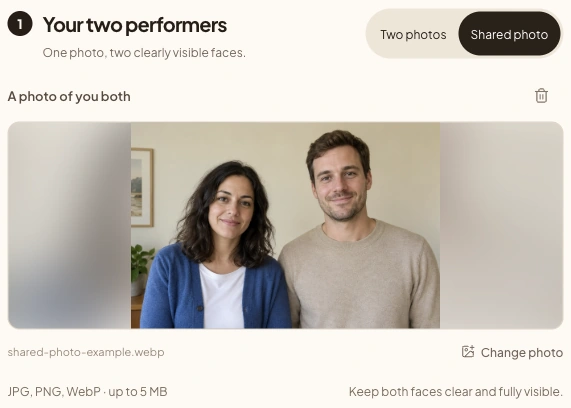
Hotel Lobby AI video shared-photo branch: one uploaded image supplies both performers. This example photo was generated with imagegen.
Changing Hotel Lobby AI video photo mode changes which slots are used. Recheck each Hotel Lobby AI video thumbnail and filename after switching. Uploading a photo prepares your Hotel Lobby AI video locally in the form; the quoted Create my Hotel Lobby AI video button submits it for processing. On the homepage, the same action can read Create video · … credits. Use photos you have permission to animate; see the photo preparation guide.
Step 2: Assign Hotel Lobby AI video performers
In Two photos, the slot labels determine the requested positions. Check the actual thumbnails before creating your Hotel Lobby AI video. The small double-arrow button between them is Swap performers: click it once to exchange the portraits. Change photo replaces one image; the trash icon removes it.
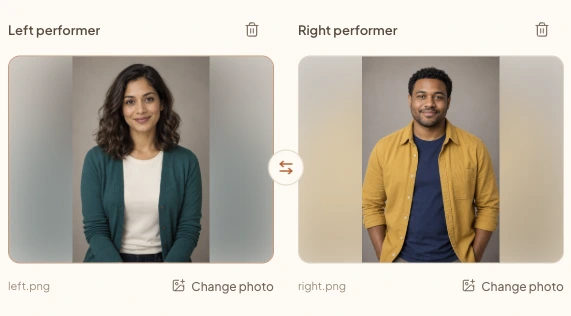
Current October 6 controls: Maya in teal on the left and Jordan in mustard on the right. These are the actual birthday experiment inputs; the central arrows exchange them.
In Shared photo, your Hotel Lobby AI video uses the left and right positions in the original picture. The swap button is disabled. To reverse the arrangement, edit your source photo first or use two separate portraits. Do not expect the disabled control to split, crop, or swap people automatically.
Step 3: Choose Hotel Lobby AI video settings and a topic
Keep Hotel Lobby (orange) under Choose your background. The current Hotel Lobby AI video creator also lists other backgrounds; changing one changes the Hotel Lobby AI video scene. Hotel Lobby AI video clothes come from the photo references. Show the outfit you want, because unseen details must be inferred.
New Hotel Lobby AI video requests use the current form defaults. Under Video settings, expand the summary showing the tier, resolution, length, format and quote to review compatible options. For a vertical Hotel Lobby AI video, choose 9:16; for landscape, choose 16:9. Review the refreshed Hotel Lobby AI video quote after any change. Follow the available controls instead of copying a fixed duration or credit number from a screenshot.
Branch A: An original Hotel Lobby AI video about your pair
Select AI original song when your Hotel Lobby AI video should mention a birthday, reunion or shared memory. This branch creates a fresh performance rather than copying the original artists' sequence. Keep the orange background, select the available length and resolution, and enter the occasion below. Check the refreshed quote before submitting.
Branch B: A Hotel Lobby AI video with the original song
Select Hotel Lobby original song when you want the fixed reference recording. The Hotel Lobby AI video creator switches to its reference workflow and compatible settings. Use the two separate portrait slots and inspect the selected performance interval. The current checked example is ten seconds with Kling 3.0 Omni at 720p; its October 6 quote was 120 credits. This is a dated example, not a promise that every quality or length is available.
The fixed source supplies the timing and recording for this Hotel Lobby AI video. You do not upload a personal video or song. Occasion and topic controls belong to original rap; they do not rewrite the reference recording. Changing back to AI original song changes the workflow again, so review all settings instead of assuming the old quote applies. The original-song demonstrations include complete files and case notes. Restored sound does not guarantee exact movement, likeness or lip sync.
Give the original rap a topic
The duo creator generates original vocals, an original beat and the performance in one request. Select AI original song to use the occasion buttons and optional details field. Enter names and one shared memory, milestone or inside joke, up to 240 characters. A Hotel Lobby AI video topic guides the song; it is not a word-for-word lyric script or a custom visual prompt.
The audio selector offers AI original song and a separate Hotel Lobby original song mode. Original rap uses your topic; reference mode uses the fixed performance recording when its quote is available. There is no personal audio upload or silent-generation button. To mute or replace Hotel Lobby AI video music after download, edit a copy; replacement audio will not change the generated mouth movements.
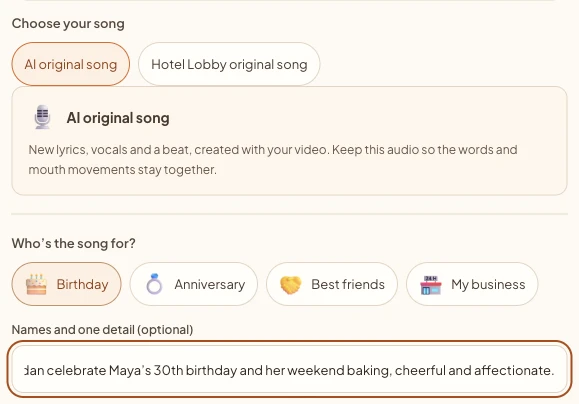
Current song and occasion controls, captured October 6. This setup matches the new birthday API case; viewing or filling the form did not submit a second render.
Earlier audio controls, captured October 5, 2026
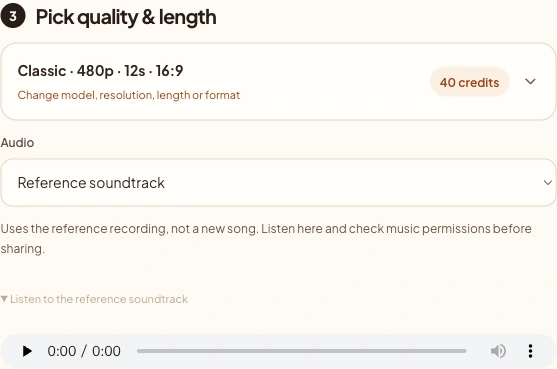
Historical reference-soundtrack control. This choice and preview player are not present in the current original-rap form.
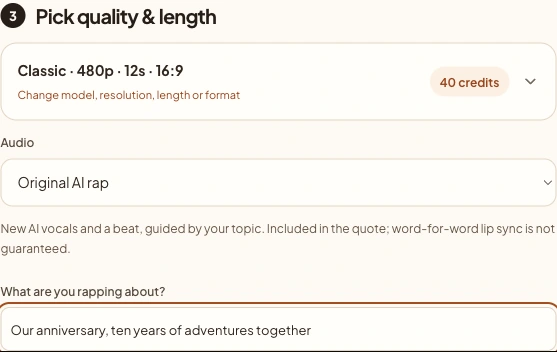
Historical original-rap selector and topic field. The current form shows the topic when AI original song is selected; labels differ from this older screenshot.
Listen to the finished Hotel Lobby AI video before posting and compare each person with their audible voice. The song and audio guide explains original rap, historical soundtrack examples and later music edits.
Step 4: Check the Hotel Lobby AI video quote
Sign in and review the live Video settings summary and selected song: model, background, length, resolution, format and credit cost. A historical screenshot can label this summary This generation. AI original song includes generated vocals and music; Hotel Lobby original song follows the fixed reference. Check that the intended mode appears in your saved settings. Your Hotel Lobby AI video quote is recalculated when settings change. The Hotel Lobby AI video screenshot's balance is demonstration data, not a signup reward or price promise.
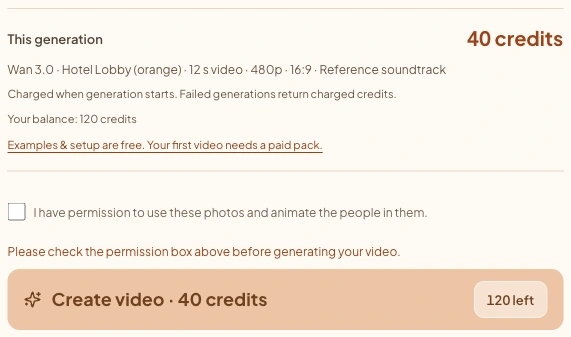
Before submitting a Hotel Lobby AI video, review the current quote and check the photo-permission box. Account balance shown is a local example.
Your first Hotel Lobby AI video needs a paid pack if you have no usable credits; existing unexpired credits can cover the quote. Signing up for a Hotel Lobby AI video does not grant credits. Daily check-in rewards unlock after the first confirmed purchase. Read the Hotel Lobby AI video cost guide for the first payment, settings-specific charges and retry budget. Check the permission box, then click the quoted Create my Hotel Lobby AI video button once when the tool is ready. A different entry point can label the same action Create video · … credits.
Follow the same task in History
After Hotel Lobby AI video submission, the preview switches to History. Watch that Hotel Lobby AI video task instead of clicking Generate repeatedly. These labels describe different stages:
- Checking your prompt and references: input checks are still running.
- In the queue: the task is waiting to start.
- Creating your duo: generation is underway.
- Checking the generated video: output checks are running; the file is not ready yet.
- Your video is ready: the approved result can be opened.
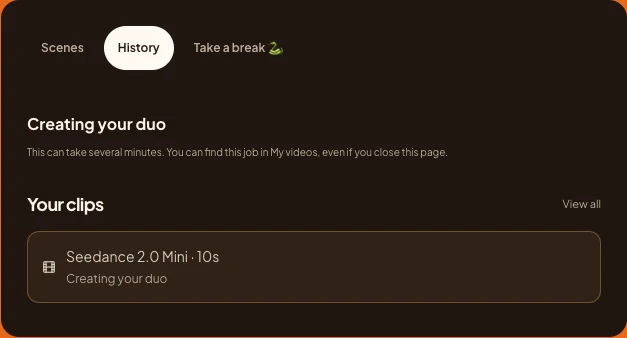
Hotel Lobby AI video task status: Creating your duo. Current interface, with a locally simulated task.
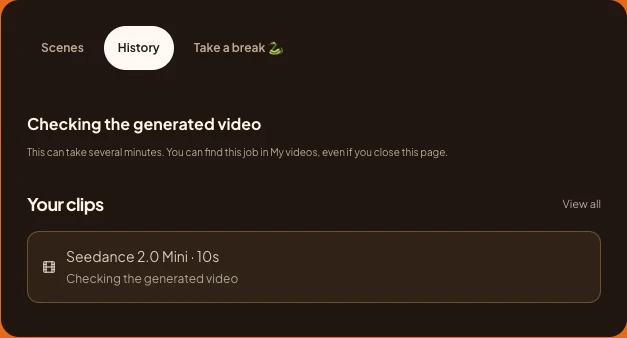
Hotel Lobby AI video output check: wait for approval before opening the result. Locally simulated status.
A refresh error does not mean your Hotel Lobby AI video failed. Use the status area's retry control to refresh the same task, or find it in My videos after leaving the page. Retry output check appears when that check is unavailable. It retries the Hotel Lobby AI video check; a new generation is a separate action. See the task troubleshooting guide for failures and blocked results.
Step 5: Review and download the Hotel Lobby AI video
When Your video is ready appears, play your Hotel Lobby AI video in History. Check both faces through the whole Hotel Lobby AI video, including turns and overlaps. Look for swapped identities, distorted hands, unexpected clothing, or microphone changes. Listen with sound, then check the framing muted.
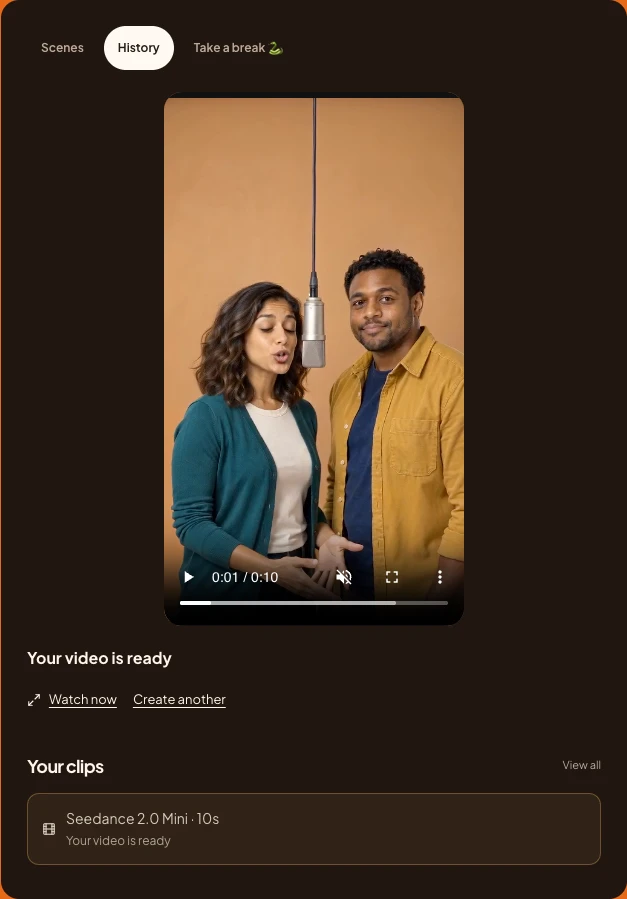
Hotel Lobby AI video ready state: Watch now opens the larger preview. This October 6 screenshot uses the new birthday API video and local task data.
Click Watch now to open the Hotel Lobby AI video preview dialog. Click Open original video beneath the player to open the Hotel Lobby AI video file in a new tab. The current Hotel Lobby AI video creator uses this link rather than a separate Hotel Lobby AI video Download button. Use the browser player's download menu or save command to keep your Hotel Lobby AI video; on mobile, use the available browser save or share-to-files action.
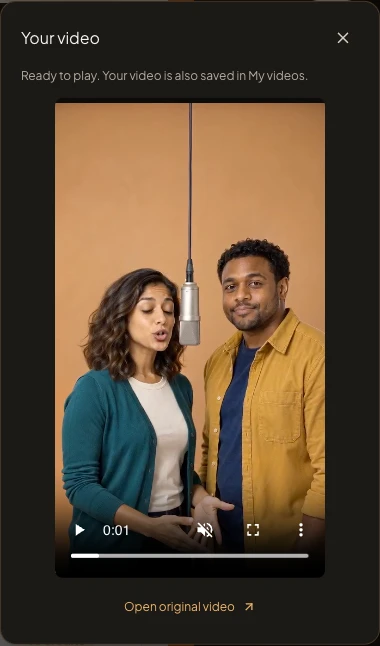
Save a Hotel Lobby AI video through Open original video, then your browser's download or save control. New birthday API result shown, with local task data.
Save your Hotel Lobby AI video on iPhone or Android
On iPhone, open the original Hotel Lobby AI video and use the available save or share action. After a download, look in Safari's Downloads list or Files → Browse → iCloud Drive → Downloads, unless you changed that location. To move it into Photos, inspect the saved file's share sheet for Save Video if offered. See Apple's download help.
On Android, save the original Hotel Lobby AI video using Chrome's offered video Download or Download link action. Look in Chrome → More → Downloads or your device's Files app. See Google's Android instructions. These instructions and the mobile-width screenshots do not establish a physical-phone generation test.
Open the saved Hotel Lobby AI video and confirm it plays with the intended audio. If you crop it later, check the whole timeline so neither performer disappears. Keep the Hotel Lobby AI video original, photos and settings to compare a later attempt.
Fix the Hotel Lobby AI video problem you can see
Change one input at a time when improving a Hotel Lobby AI video. Replace an obstructed portrait for face drift; check slot labels for incorrect sides; inspect the saved file for missing sound. A completed Hotel Lobby AI video that differs from your preference is not automatically a failed task. Another Hotel Lobby AI video uses another quote.
Questions before sharing a Hotel Lobby AI video
Can I follow the tutorial on my phone?
Yes. Select Hotel Lobby AI video photos from your device and check the thumbnails. Convert unsupported formats first. A Hotel Lobby AI video opening in another tab still needs to be saved through the browser.
Where did the older editing and instrumental controls go?
The current Hotel Lobby AI video form separates AI original song from a fixed reference-song workflow. Older screenshots can show different editing, instrumental or wardrobe controls. Follow the live audio selector and the settings recorded for your task. See the feature and historical-mode notes when inspecting an older task. The workflow selection guide explains new performances and reference motion; the generator comparison covers tools.
Is perfect lip sync guaranteed?
No. Review your Hotel Lobby AI video against its generated voices and music. The same-picture audio experiment shows that replacing music leaves the mouths unchanged. Check the destination platform's music and AI-disclosure settings before posting.
Is saving my Hotel Lobby AI video another paid render?
No. Downloading an approved successful Hotel Lobby AI video does not spend additional export credits. Opening its original file retrieves the existing result. If a Hotel Lobby AI video link expires, return to the same saved task for fresh access; do not press Generate to repair the URL.
Does my Hotel Lobby AI video need a subscription to download?
No. A one-time pack can fund the Hotel Lobby AI video generation. Signup grants no generation credits, while daily rewards unlock after a confirmed purchase. Read free generation and download conditions before treating an example as a free Hotel Lobby AI video made from your photos.
Sources
- Current creator controls and file validation, reviewed October 6, 2026; screenshot dates and local demonstration task data are disclosed above.
- Current credit plans and dated budget examples; a live quote determines the next submission.
- Original COLORS performance, the visual reference rather than an output-quality guarantee.