
Post a Hotel Lobby AI Video
To post a Hotel Lobby AI video, first save the completed file, inspect the full performance, prepare the framing and sound, then upload it through your chosen social app. Add accurate captions, choose a readable cover and complete the platform’s AI disclosure before publishing. Keep an untouched master alongside the edited version.
This walkthrough covers TikTok, Instagram Reels and YouTube Shorts. YouTube and Meta disclosure guidance was read on October 4, 2026. TikTok help returned no readable body in this research pass; its exact menu placement remains unverified. When you post a Hotel Lobby AI video, account features, region and app versions can change the controls you see. To post a Hotel Lobby AI video, follow the current labels in your own upload screen rather than treating a screenshot as a permanent interface map.
AI-generated publishing illustration. The creator screenshot below shows actual local controls; social upload screens vary by account.
Before you post a Hotel Lobby AI video: save the file
Before you post a Hotel Lobby AI video, play the downloaded file outside the generation preview. Check that it opens, contains the complete scene and has the expected sound. Inspect the beginning, the most active movement and the final frame. A successful task status does not establish that every detail looks right.
When you post a Hotel Lobby AI video, name the master clearly and keep it unchanged. To post a Hotel Lobby AI video with edits, create another file for captions, crops or audio edits. If you document a case, record those changes alongside the output parameters. This makes it possible to distinguish generator behavior from improvements made in an editor afterward.
Choose vertical framing before cropping
When you plan to post a Hotel Lobby AI video vertically, choose 9:16 in the creator before generating. This requests a portrait composition rather than simply cutting a landscape clip afterward. Check the actual file dimensions to confirm what you received. A 480p generation tier describes resolution, not a promise of a particular social-platform export preset.
If you want to post a Hotel Lobby AI video from landscape footage, preview the crop across the entire performance. To post a Hotel Lobby AI video clearly, both performers should remain inside the frame when they lean or gesture. A centered crop can remove a person near the edge. To post a Hotel Lobby AI video without cutting a person off, use a deliberate reframing edit or a background layout when a tight crop would lose essential action.
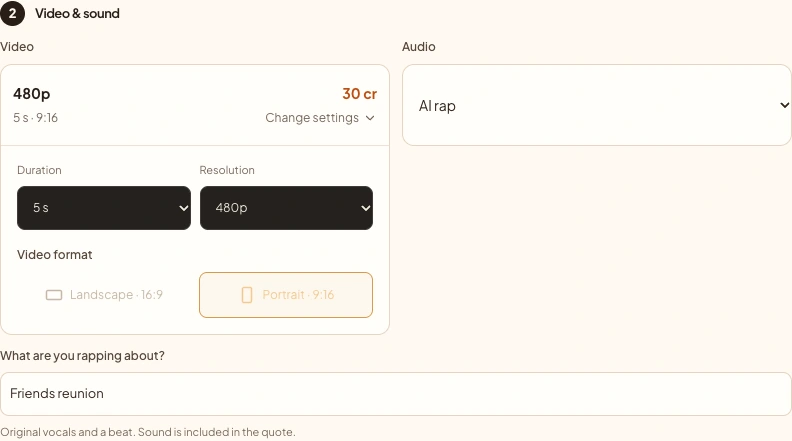
Actual local creator screenshot, October 4, 2026. These generation settings are separate from each platform’s publishing controls.
Post a Hotel Lobby AI video with readable captions
To post a Hotel Lobby AI video with a useful cover, pick a frame where both subjects are recognizable. Add a short title if it explains the occasion. Preview the image at phone size and in the destination’s grid. A title that overlaps faces or disappears at small size provides little help.
When you post a Hotel Lobby AI video with spoken or sung output, transcribe what is actually audible. When you post a Hotel Lobby AI video, automatic captions can mishear names, slang and music-backed vocals. Before you post a Hotel Lobby AI video, correct them manually, shorten lines and preview their placement while the performers move. Before you post a Hotel Lobby AI video, keep important text away from faces and from the app’s navigation or caption overlays.
Choose sound before you post a Hotel Lobby AI video
Before you post a Hotel Lobby AI video, choose one primary soundtrack. If you post a Hotel Lobby AI video with original generated rap, listen for the words and the ending. Adding another loud track can bury those vocals. If you post a Hotel Lobby AI video with a platform sound instead, work from a silent edit or deliberately reduce the existing audio.
Before you post a Hotel Lobby AI video, remember music permissions depend on the recording and intended use. TikTok recommends its Commercial Music Library for posts promoting a brand, product or service. Its other music licenses do not automatically cover commercial promotion. Review the song and audio guide and the destination’s current music terms before selecting a track.
Upload to TikTok and disclose the generated scene
When you post a Hotel Lobby AI video to TikTok, use the creation control to upload the saved file, review the edit, then continue to the posting settings. Consult TikTok’s current AI content help and your current upload screen for the disclosure control; a fixed menu location was not verified in this pass. Enable the AI-generated content setting for realistic synthetic footage and complete the remaining post details.
TikTok requires labels for realistic AI images, video and audio. A photo-based performance can show someone doing or saying something they never did. Provide context in the caption as well, such as explaining that this is a generated celebration. A label does not replace the rest of the platform’s content rules.
Post a Hotel Lobby AI video as an Instagram Reel
To post a Hotel Lobby AI video as a Reel, select the finished clip through Instagram’s current creation flow. Preview the full framing, choose the cover, check the audio mix and add your caption. Before you post a Hotel Lobby AI video, look for the AI disclosure option available in your account and identify the scene as generated.
Meta describes AI info labels for generated content, including information detected from technical signals or supplied by users. The precise presentation can change. Before you post a Hotel Lobby AI video, review the current disclosure controls during upload. Avoid presenting a fictional performance as an actual recording of the pictured people, especially when sharing outside the original group.
Post a Hotel Lobby AI video as a YouTube Short
You can post a Hotel Lobby AI video through YouTube Studio’s upload flow. YouTube’s Shorts instructions accept square or vertical files up to three minutes; a five-second portrait demo fits those format conditions. Before you post a Hotel Lobby AI video, review the title, audience, visibility and other details before publishing the draft.
YouTube requires disclosure for meaningful, realistic AI generation, including people appearing to do something they did not do and generated music that is the video’s focus. Its current help names an AI use setting in the Attributes section. To post a Hotel Lobby AI video transparently, choose the appropriate disclosure for your generated performance and confirm the resulting details.
Post a Hotel Lobby AI video after a final check
Before you post a Hotel Lobby AI video, play the upload preview once with headphones and once muted. Confirm the correct file, both subjects, readable captions, a useful cover, intended audio and the AI label. Before you post a Hotel Lobby AI video, check the chosen audience and visibility before the final action.
To post a Hotel Lobby AI video to each destination, keep a separate draft until you have checked its preview. When you post a Hotel Lobby AI video, reusing the same master is convenient, but a cover, audio selection or caption placement that works in one app may need adjustment in another. Review the destination version before the final publishing action.
Prepare your next performance
Create a portrait clip, then return here for the publishing checks.
Create a video