
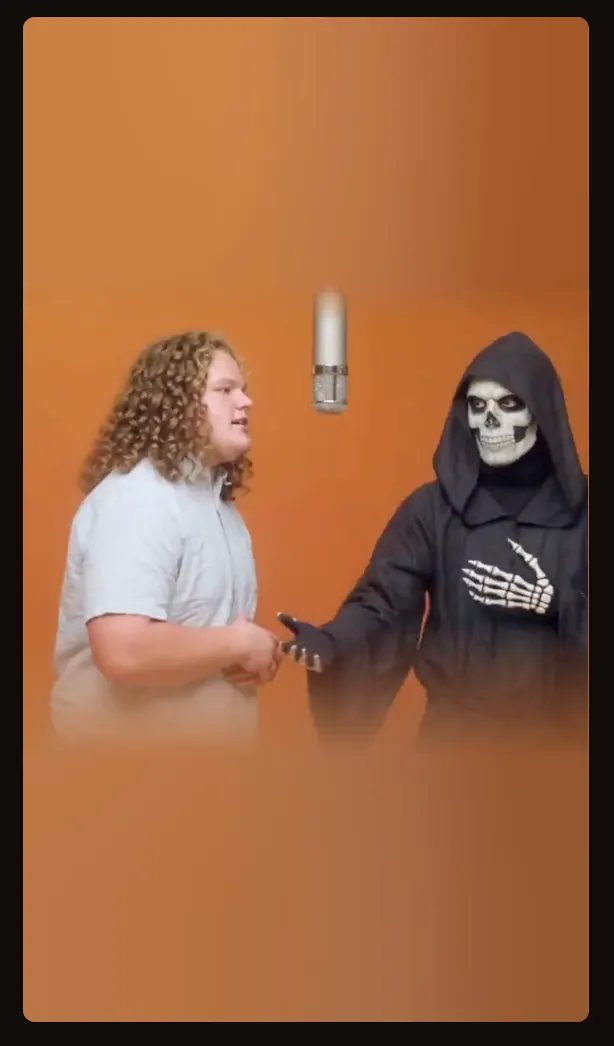
TWO PHOTOS. ONE ORANGE STAGE.
Hotel Lobby AI Filter
Use the Hotel Lobby AI filter to turn two portraits into a duo performance in the orange studio. Assign one person to each side, choose your settings, and check the credit cost before generating.
1Your two performers
Left leads. Right hypes. Make it your duo.
JPG, PNG, WebP · up to 5 MBOne clear face per photo works best.
2Video & sound
480p12 s · 16:9Change settings
Listen to the original audio
Generated demo · synthetic photos · original AI audio · not a preview of your selected settings
Your clips
View allYour submitted clips will appear here. Sign in to revisit them later.
Take a little break
A round of Snake while your video renders.
Arrow keys / WASD · Space to pause · Swipe or tap on mobile
Start with one video for $4.90Pricing
What is the Hotel Lobby AI filter?
The name describes the recognizable orange-studio effect: two performers, a suspended microphone, and a shared performance. Here, your two photos are references for a video. The preview shows the scene you are working with; your finished result appears after generation.
Looking for a still image? This tool creates a video. Other products may use “filter” for a single image, so check the output type before choosing a tool.
Create your duo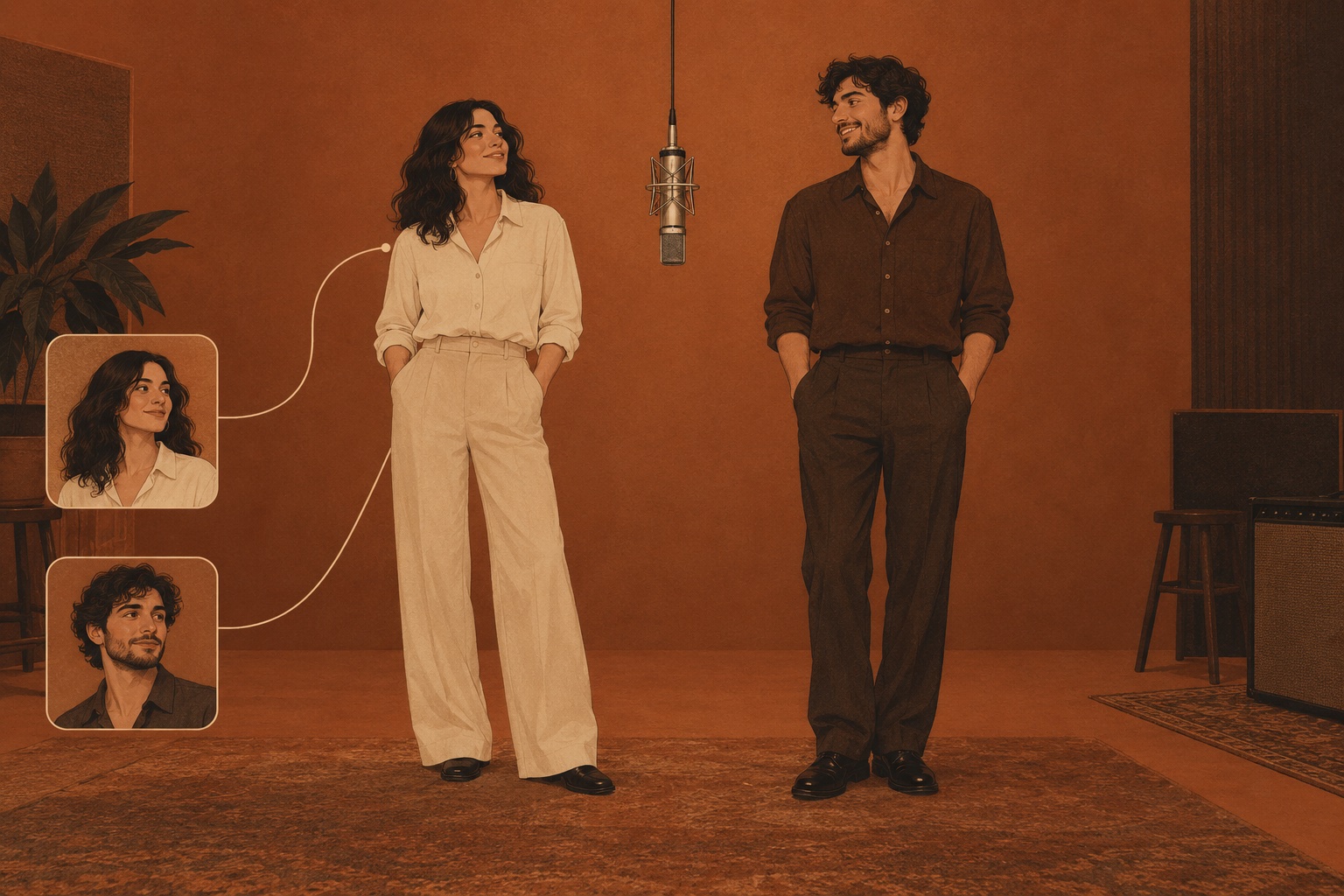
How to use the filter with two photos
Choose your left and right performers
To prepare the Hotel Lobby AI filter, add one portrait to each upload slot above. Inspect both previews and use Swap if you want to reverse their positions. Selecting photos prepares the pair; it does not submit a generation.
Set the look and review the cost
Before running the Hotel Lobby AI filter, review Wan 3.0 on the fixed Hotel stage. Choose duration, resolution, framing and audio, then check the live credit quote. Sign in and confirm photo permission before submitting.
Watch the full result, then download
Check both identities, hands, and clothing through the whole clip. Listen to the sound, then save the completed video. If a task is still running, check My videos before starting another take.
Choose photos the model can read
Use one person per photo, with a sharp, unobstructed face. Similar lighting and face angles make a useful starting pair. Keep visible clothing in the frame if you want the portrait to guide the outfit.
Avoid tiny group-photo crops, strong beauty filters, sunglasses, and hands over the face. Follow the file requirements beside the upload slots. Clear inputs help, but AI likeness and movement can still vary.
If both faces are clear but the pair feels uneven, compare the original files at the same viewing size. A distant face enlarged from a screenshot contains less useful detail than a close portrait. Replace that source before changing the performance settings. Save a copy of each original portrait so later comparisons use consistent inputs.
AI filter or CapCut template?
Choose by what you want to make. A generated performance and an edited sequence solve different parts of the process; you can also edit a finished AI clip afterward.
| Your decision | This AI video tool | An editing template |
|---|---|---|
| Starting point | Two portraits assigned to two performers. | Photos or clips placed into the template’s media slots. |
| What to review | The generated faces, motion, framing, and sound. | The selected template’s layout, timing, and effects. |
| Next step | Generate here, then add captions or trim in your editor. | Choose a specific template and inspect its preview before export. |
Template access can differ by app version and region. Check the options in your own editor rather than assuming every shared template link will open. CapCut’s template guide
Make a better next take
The wrong person is on the left
Check the two input previews and swap them before submitting again. Keep the roles consistent with your intended pairing.
A face changes during movement
For your next Hotel Lobby AI filter attempt, try a sharper portrait with both eyes, the mouth, and the hairline visible. Change one input at a time so you can judge what helped.
Hands or clothes look inconsistent
Review the moments with the most movement. Keep the clothing reference simple and visible, and check the active settings before retrying. A new take uses a new generation request.
Choose the format and sound before generating
The studio offers 16:9 landscape and 9:16 portrait framing. For a vertical Hotel Lobby AI filter video, select portrait in the tool; uploading a portrait photo alone does not set the video’s aspect ratio. Watch the completed file to check that both performers remain in view.
Audio follows the option you select in the generator. Check it before submitting, and listen to the completed file before sharing. The preview’s soundtrack alone does not tell you what every output mode will contain.
Explore the song and audio guideHotel Lobby AI filter questions
Is the Hotel Lobby AI filter free?
You can view examples and prepare photos without payment. New accounts need a paid pack and enough credits for the selected quote. Daily rewards unlock after the first confirmed purchase. Existing unexpired credits can be used without another purchase when they cover the quote.
Do I need an account?
You can choose and preview your photos before signing in. An account is required to submit a generation and keep track of your videos.
Can I use only one photo?
Choose One photo for a shared image containing two visible performers. For separate portraits, choose Two photos and assign each person to a slot. Both input modes use the current Wan 3.0 creator.
How long will generation take?
Processing depends on the active service and its queue. Check the status in My videos. The clip length shown in the tool is the video’s duration, not a turnaround promise.