
Hotel Lobby AI Troubleshooting
Start Hotel Lobby AI troubleshooting by identifying whether the problem is an input, a completed result, a task status or a download. Check the existing task before submitting again. A temporary refresh error does not prove generation failed, and a completed clip with an unwanted detail is different from a failed task.
AI-generated troubleshooting illustration, not a failed result, status screenshot or evidence of a generation test.
Hotel Lobby AI troubleshooting by symptom
| Symptom | First check | Next action |
|---|---|---|
| Upload rejected | File type, size and selected mode | Use JPG, PNG or WebP within the limit |
| Wrong face or side | Original slot assignment | Check thumbnails and swap before another attempt |
| Missing sound | Mute state and chosen audio | Listen to the saved file |
| Processing seems stuck | Same task in My videos | Refresh status without starting another task |
| Moderation unavailable | Task message and retry control | Retry the check when offered |
| Download stopped working | Task status and account | Request fresh download access |
Hotel Lobby AI troubleshooting works best when you keep the task identifier, settings and approximate submission time. Do not delete those details while investigating. Avoid including account passwords, payment credentials or private access links in a public post.
Hotel Lobby AI troubleshooting for uploads and faces
For upload-related Hotel Lobby AI troubleshooting, use a supported image under 5 MB. Renaming an unsupported file extension does not convert its contents. Export a real JPG, PNG or WebP copy while keeping facial detail. For two-photo mode, place one person in each image; do not rely on a crowded group photo to select the intended subject.
During Hotel Lobby AI troubleshooting, if a completed face drifts, inspect when it happens. A turn, obstruction or overlap can expose ambiguity in the portrait. Try a sharper image with an unobstructed face and similar lighting. Clothing outside the image must be inferred. In face-related Hotel Lobby AI troubleshooting, a new photo improves the reference but cannot guarantee perfect identity in every frame.
For Hotel Lobby AI troubleshooting, change one meaningful factor per new attempt. Changing photos, motion instructions and model together makes the result difficult to interpret. Save the previous output so you can compare the specific issue rather than remembering only its opening frame.
Performers appear on the wrong sides
For casting-related Hotel Lobby AI troubleshooting, review the left and right thumbnails before generation. In Hotel Lobby AI troubleshooting, the swap control changes the input assignment; it cannot repair an already generated file. Two subjects in one image are supported only by compatible creative modes. Editing requires separate references, so use the input mode shown in the actual interface.
For motion-related Hotel Lobby AI troubleshooting, if the initial positions are correct but identities cross later, simplify movement instructions. Avoid requests for crossing, swapping roles or extra people. A fixed-role editing workflow rejects conflicting details. Use the prompt guide to understand compatible instructions rather than repeatedly adding stronger wording.
Audio is absent or does not match mouths
The audio part of Hotel Lobby AI troubleshooting begins outside the model: unmute the player, raise device volume, and test another known audio file. Then listen to the downloaded clip. This distinguishes a muted preview from an export without an audible track.
During audio-related Hotel Lobby AI troubleshooting, check whether you selected silence, source soundtrack or original music. Their meaning varies by workflow. A soundtrack can be attached after visual generation; adding it does not automatically adjust mouths. Creative rap audio and instrumental background music are different options. The song guide explains those choices.
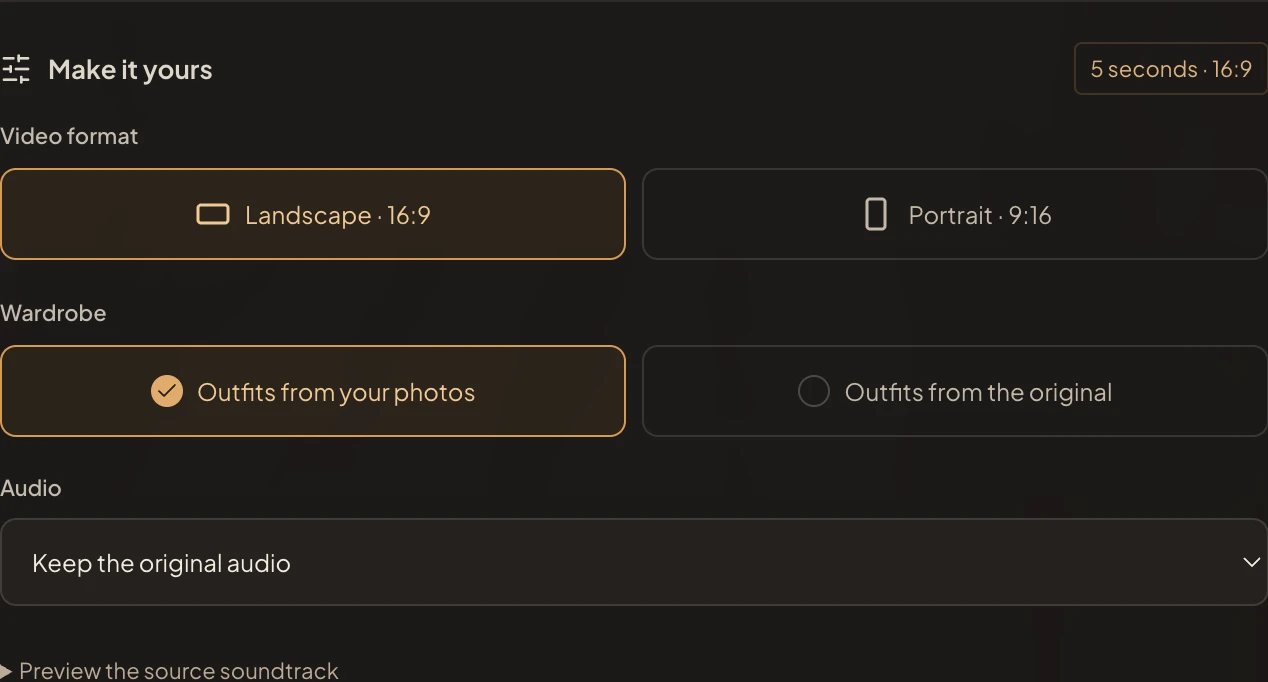
Actual settings captured October 4, 2026. Check the audio selector and aspect ratio before another submission.
Hotel Lobby AI troubleshooting for task status
For status-related Hotel Lobby AI troubleshooting, open My videos in the same account. Read the status of the original task. During Hotel Lobby AI troubleshooting, network refresh errors can occur while a provider continues processing. An unavailable model or changed quote should be resolved by inspecting current availability, not by submitting the same request repeatedly.
Output-related Hotel Lobby AI troubleshooting starts with checks that happen before successful download access. Hotel Lobby AI troubleshooting distinguishes an unavailable check from a blocked result. Where offered, the Retry check control used in Hotel Lobby AI troubleshooting resumes moderation for the existing task; it does not start another model generation. In Hotel Lobby AI troubleshooting, a blocked result is not bypassed by renaming files or refreshing links.
Hotel Lobby AI troubleshooting: when does a retry use credits?
New generation requests receive a fresh quote and use credits when charged by the task flow. Failed or canceled charged tasks return consumed credits through that flow. During Hotel Lobby AI troubleshooting, a completed video that differs from your preference does not automatically qualify as a failed generation.
Hotel Lobby AI troubleshooting should therefore begin with reviewing status and balance. Refreshing an existing task, requesting its download or retrying an unavailable output check is different from pressing Generate for a new attempt. For credit-related Hotel Lobby AI troubleshooting, if the displayed balance does not match your expectation, send support the task ID and timeline.
Hotel Lobby AI troubleshooting for downloads and framing
Download-related Hotel Lobby AI troubleshooting requires checking access to an approved successful task owned by your account. In download-related Hotel Lobby AI troubleshooting, signed access links can expire; return to My videos for a fresh link rather than reusing an old URL. Save a local copy and check playback. The service does not promise that an old external link stays available forever.
For framing-related Hotel Lobby AI troubleshooting, if a portrait crop removes one subject, compare the original file before editing. Select portrait framing before a new generation when available. Review the full clip because movement can carry a face outside an otherwise acceptable opening crop. Do not stretch landscape footage to imitate a portrait composition.
Escalate Hotel Lobby AI troubleshooting with useful details
For unresolved Hotel Lobby AI troubleshooting, contact support@hotellobbyai.run with the task ID, selected mode, symptom and when it occurred. Include a relevant settings screenshot if appropriate. Describe expected and actual behavior; never send passwords or payment secrets. Review specifications and pricing for the conditions that applied.
Keep this Hotel Lobby AI troubleshooting record focused on the same task: note whether the issue began during upload, processing, playback or download. That timeline helps support distinguish a new generation problem from an access problem.
For Hotel Lobby AI troubleshooting, save a settings screenshot with the task identifier and describe the first visible symptom clearly.
Keep one Hotel Lobby AI troubleshooting timeline
A useful Hotel Lobby AI troubleshooting note separates submission, status checks and attempted downloads. Write down which action first produced an error and whether the same task later became accessible. During Hotel Lobby AI troubleshooting, do not treat an old signed URL as the only route to your file. Return to the account task instead. If you ask support for Hotel Lobby AI troubleshooting, explain the visible symptom and the task reference. That gives support something concrete to inspect without exposing your private account information.
Sources
- Current product input validation, task state handling, moderation retry and signed download implementation, reviewed October 4, 2026.
- Production settings screenshot captured October 4, 2026; no new video generated for this guide.