
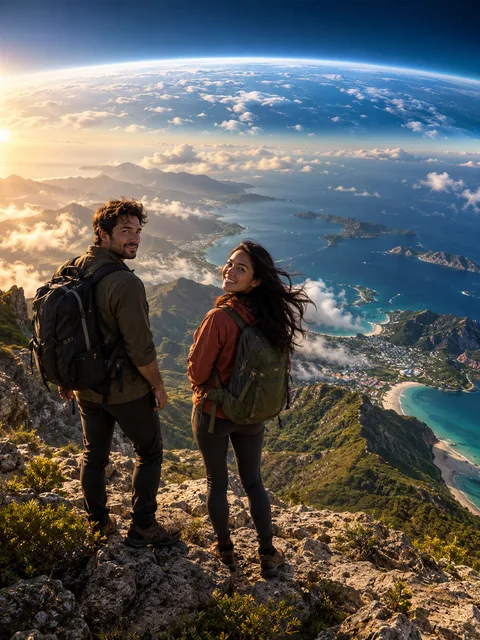
AI scenes built around your own photographs
These AI video effects generate a new action and setting from subject references. They are different from an editor filter applied to footage you already filmed. Choose AI video effects according to the result you want: contact between two people, movement in one portrait, visual duplication or a change in camera scale.
The AI video effects directory shares the homepage creator and its quote, upload and download flow. Earth Zoom is the starting selection below, while the scene library lets you choose other actions. Each of these AI video effects has its own direction; choosing a tile changes the requested scene instead of merely changing the page's illustration.
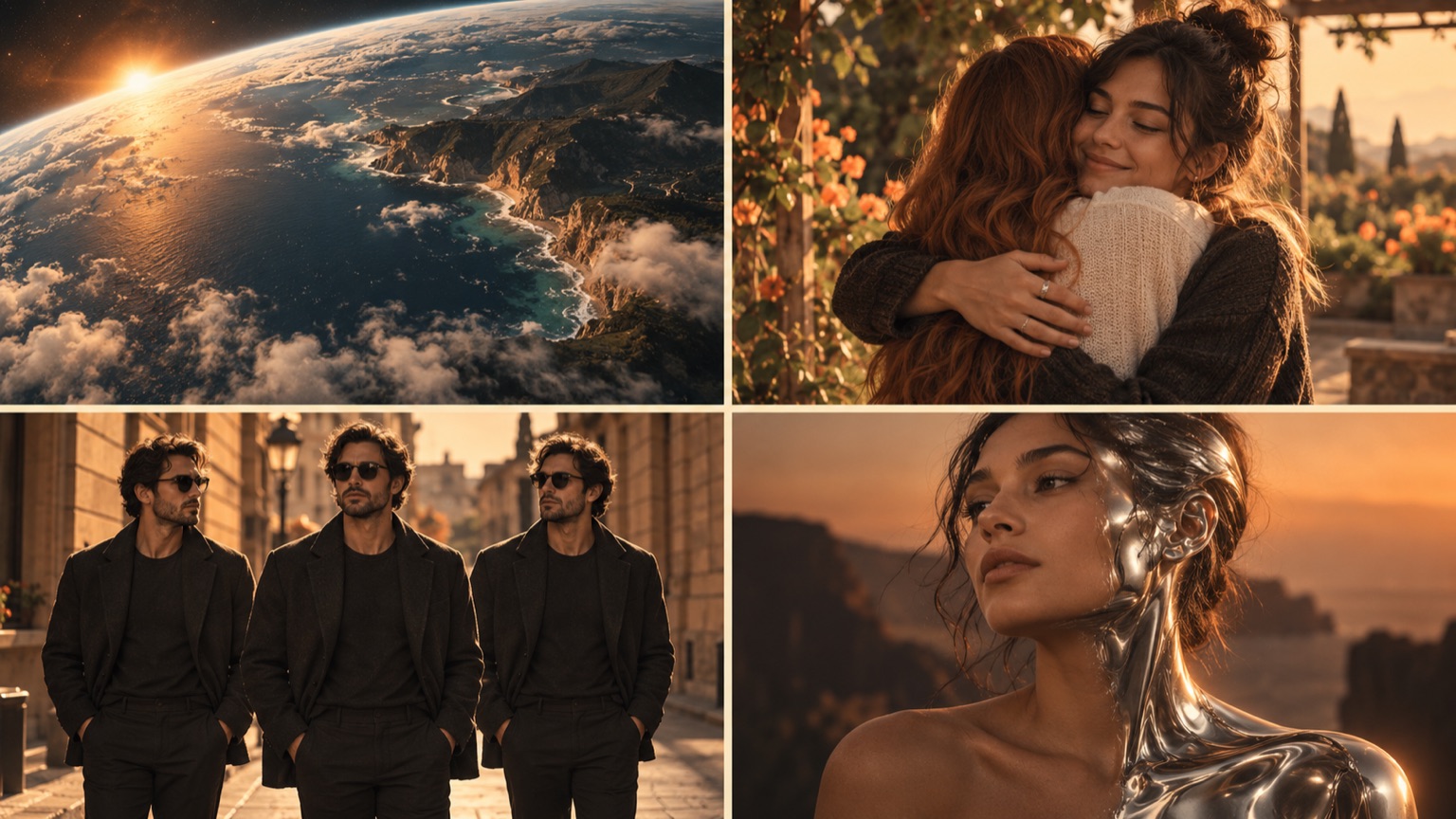
AI-generated concept artwork for ai video effects; this illustration is not a recorded product result.
How to use the AI video effects
First select the AI video effects scene that answers your idea. A hug needs two intended subjects, whereas a moving portrait or Earth pullback can use one. Prepare the references after making that choice. The AI video effects tool offers separate portrait slots and a shared-image mode, with readable faces more useful than ambiguous group casting.
Then inspect the AI video effects settings: model, duration, quality, format and sound. Read the available quote before submitting and confirm you can use the images. After the task finishes, download the AI video effects result and review the actual action. A scene label identifies the request, not a guarantee that every generated frame will match it.
Choose AI video effects by action, not only by appearance
Use Earth Zoom Out for AI video effects that move the camera from a recognizable opening portrait toward a planetary view. The wider geography is generated rather than mapped from the photo. Use AI Clone Video for AI video effects that ask for three instances of each supplied identity in one scene.
For physical interaction, AI Hug Generator requests a garden embrace. The memorial hug uses a quieter home setting. These AI video effects need particular attention to arms, hands and overlapping bodies. If contact is unnecessary, Animate Old Photos offers AI video effects with subtle motion in a still portrait.
Transformation and dance options
The AI Zombie Trend belongs to AI video effects that change appearance while requesting recognizable faces. Its configured direction uses friendly theatrical makeup without gore. Other transformation options include chrome material, outfit changes and an original comic-book treatment. These AI video effects are separate visual directions, not an exact wardrobe catalogue.
The Gas Station AI Trend provides AI video effects with small coordinated dance steps in a sunset forecourt. Slow Dance and Rain Dance request different movement and settings. Choose the AI video effects action before expecting a particular sequence; a generic rain-dance scene does not establish an exact replica of a named social trend or song.
Match the reference count to the scene
For AI video effects involving a solo subject, one clearly readable image keeps the intended cast simple. A shared photograph can supply a pair when both faces are separate and visible. Two photo slots let you assign the identities more deliberately. The AI video effects should not depend on the model guessing which two people matter in a crowd.
Different AI video effects emphasize different details. A dance makes feet and clothing important; a hug makes arms and contact important; a clone scene makes repeated faces important. Use the photo preparation guide as a starting point, then evaluate the reference against the actual AI video effects action you selected.
Review an effect as a complete sequence
After creating AI video effects, inspect the opening, the main action and the ending separately. Track each supplied identity through turns and occlusion. Count subjects where duplication is expected and watch body contact where two people meet. A strong still frame does not establish good AI video effects motion across the full clip.
Keep the original AI video effects output before editing. Check dimensions and sound in the downloaded file. If something fails visually, record that specific issue before another attempt. Increasing resolution changes the requested deliverable; it does not guarantee improved anatomy, identity or continuity in the AI video effects.
When a rap is the better choice
Choose AI video effects when a visible action carries the idea. Choose the AI rap generator when the words should describe a birthday, friendship or milestone. The AI music video generator explains original sound and picture together. These are separate creative tasks even though AI video effects and rap share the creator.
The AI video effects setup generates scene sound instead of accepting your own audio file. A later music edit changes the soundtrack without regenerating movement. Check pricing and the selected AI video effects quote before submission. This directory does not promise unlimited free effects or one completion time for every available setup.
Questions about AI video effects
Do all scenes work with one photo?
Some AI video effects need two intended subjects for their action, even when supplied in one shared photograph. Others work around a solo portrait. Match the cast to the AI video effects, rather than equating one file with one person.
Are the tiles all proof of output quality?
The AI video effects library distinguishes scene artwork and playable previews. A concept picture explains the direction; a clip illustrates its own generation. Review your particular AI video effects result instead of treating either as a universal success guarantee.
Can I upload my own video or song?
This AI video effects workflow uses photo references and available scene settings. It does not expose a personal motion-video or audio-upload control. Choose AI video effects for a new generated scene, and use a separate editor for finishing footage you already have.
Can I change the effect before rendering?
Yes. Choose another AI video effects tile, review the photo mode and check the updated quote. Changing AI video effects after a completed render means preparing a new request; it does not transform the already downloaded file in place.
Sources
- Current site creator, scene settings and photo workflow, reviewed October 6, 2026.
- Photo preparation guide and output specifications.
- RapDuo topic page, reviewed for page structure and search intent; its product specifications are not specifications for this site.