
What you need before starting
Hotel Lobby AI on your phone runs through this website's browser creator. No generator app or extension is required for Hotel Lobby AI on your phone. Keep a supported photo of each performer, or one clear picture of both people, ready on your device. You need an account, an available quote and enough usable credits to submit a personalized video.
Preparing Hotel Lobby AI on your phone is free: selecting pictures and changing settings does not submit a render. Generating Hotel Lobby AI on your phone spends the displayed credits. Account creation grants no generation credits. Use the free-versus-paid guide to understand purchase and reward conditions before proceeding.
This guide explains Hotel Lobby AI on your phone using the current creator and official browser download instructions. It does not claim a completed generation test on a physical iPhone or Android device. Browser versions can change how you save Hotel Lobby AI on your phone; follow the controls you actually see.
| Requirement | What to check | | ----------- | ----------------------------------------------------------------------------------------------------- | | Browser | Open the website in your phone browser; Safari and Chrome have the download instructions linked below | | Photos | JPG, PNG or WebP, up to 5 MB each; dimensions between 300 and 12,000 pixels | | Account | Sign in to submit and revisit your own tasks | | Credits | Review the quote for your actual model, duration and song choice | | Storage | Keep enough device space for the original video file |
Prepare your portraits in the browser
Start Hotel Lobby AI on your phone by tapping Upload a photo in the creator above. Choose Two photos for separate portraits, then check the Left person and Right person thumbnails. A picture from a different day is acceptable; the pair does not need to have been photographed together.
For Hotel Lobby AI on your phone with one shared picture, choose Shared photo. Include exactly two clearly visible subjects and crop out extra people before selection. Shared-photo Hotel Lobby AI on your phone uses the source picture's arrangement; the separate-photo swap control is unavailable.
Before making Hotel Lobby AI on your phone, check the file rather than its extension alone. An iPhone photo can be HEIC, which the current uploader does not accept. For Hotel Lobby AI on your phone, export a supported copy using an existing photo tool; renaming a HEIC file to JPG does not convert it. Keep the original.
If Hotel Lobby AI on your phone rejects an upload, inspect type, size and dimensions first. Choose clear faces and visible shoulders for Hotel Lobby AI on your phone. The photo preparation guide explains references without promising perfect identity from every input.
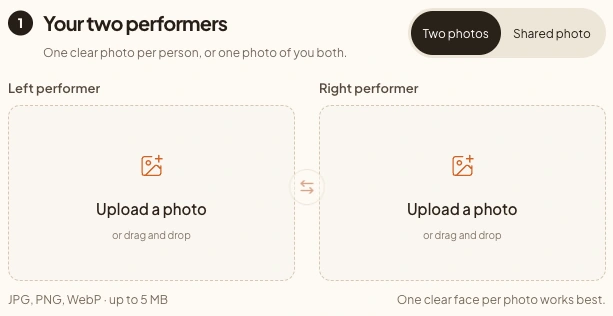
Current upload controls. A screenshot explains the input slots; it is not evidence of a completed phone generation.
Choose the orange scene, song and format
Keep Hotel Lobby (orange) selected for Hotel Lobby AI on your phone. Other backgrounds create a different scene. The creator here starts with 9:16 portrait framing for a vertical clip; choose another available format if your destination needs it.
Hotel Lobby AI on your phone offers AI original song for newly generated vocals and music about your pair. Choose an occasion and optionally add names or a shared memory. A topic guides Hotel Lobby AI on your phone; it is not an exact lyrics script.
For Hotel Lobby AI on your phone with the familiar recording, select Hotel Lobby original song. This separate workflow uses the fixed reference performance when its quote is available. Reference-song Hotel Lobby AI on your phone has different settings and costs. The song guide explains the reference and original-rap choices.
Check Hotel Lobby AI on your phone after every settings change. Read the refreshed quote, duration and resolution rather than copying an old screenshot's credit amount. The form for Hotel Lobby AI on your phone has no personal audio upload or silent-generation button.
Submit once and follow the same task
Submit Hotel Lobby AI on your phone after reviewing the thumbnails, song, quote and photo-permission checkbox. For Hotel Lobby AI on your phone, use photos you have permission to animate. A new zero-balance account needs a paid pack; existing unexpired credits can cover an available quote.
After submitting Hotel Lobby AI on your phone, follow the task in History. Queued, generating and checking output are distinct stages. Wait for an approved Hotel Lobby AI on your phone result before saving. Starting a new generation creates another attempt; it does not accelerate the original task.
If you leave Hotel Lobby AI on your phone while it processes, return to My videos in the same account. Closing Hotel Lobby AI on your phone does not cancel server processing. A refresh error is not proof of failure. The screenshot tutorial shows the task labels and current preview controls.
Save on iPhone
For a completed Hotel Lobby AI on your phone task, tap Watch now, then Open original video beneath the player. The creator opens the original file in another tab. Opening Hotel Lobby AI on your phone in another tab does not save it locally.
To keep Hotel Lobby AI on your phone, use the available Safari save or share action. If the player only offers playback, inspect its browser menu or share sheet for a file-saving option. The exact action depends on the browser and file response; this guide does not certify every iOS menu.
After downloading Hotel Lobby AI on your phone, look in Files → Browse → iCloud Drive → Downloads, or your configured download location. Safari also exposes a Downloads button beside its search field after a download. These locations follow Apple's official instructions.
If Hotel Lobby AI on your phone is in Files but absent from Photos, open the saved video and inspect the share sheet. Use Save Video if offered; otherwise retain the file in Files. Verify that your saved Hotel Lobby AI on your phone result plays with sound before deleting anything.
Save on Android
Open a successful Hotel Lobby AI on your phone result through Watch now → Open original video. Chrome may expose a Download control for a video, or a Download link action when holding a link. Use the action offered for that file; player controls vary.
Find Hotel Lobby AI on your phone through Chrome → More → Downloads or the device's Files application. Chrome's download entry also lets you share the result of Hotel Lobby AI on your phone. These are Google's Android download instructions, not a claimed Android generation test.
Before sharing Hotel Lobby AI on your phone, open the locally saved copy. Confirm both performers remain visible throughout, including turns and the ending. Listen to the actual file; a muted page preview does not establish that the export lacks an audio track.
Fix phone problems without starting another render
When Hotel Lobby AI on your phone appears silent, unmute the player, raise device volume and play the downloaded copy. If a browser opened inside another app prevents file selection or saving, try the same task in Safari or Chrome. Keep the task identifier.
If Hotel Lobby AI on your phone has an expired media link, return to the approved task for fresh access. Do not generate Hotel Lobby AI on your phone again merely to replace an old link. Waiting or review-pending tasks are not ready downloads.
For Hotel Lobby AI on your phone that still cannot be saved, note the browser, operating-system version and first failing action. Use the troubleshooting guide to separate an upload problem, a playback problem and a task failure.
Questions before making a phone video
Is Hotel Lobby AI on your phone free?
Browsing and photo preparation are free. Generating Hotel Lobby AI on your phone uses quoted credits; signup grants none. Downloading your approved result does not add a generation or export credit charge.
Does Hotel Lobby AI on your phone need an app?
The generator runs in the browser. Saving Hotel Lobby AI on your phone may use your existing Files app. Posting through a social app is a separate choice, not a prerequisite for creating the clip.
Can Hotel Lobby AI on your phone use the original song?
Select the separate reference-song option when it has an available quote. The default original-rap mode creates new music; the orange background alone does not identify the soundtrack.
Must Hotel Lobby AI on your phone stay open?
The task processes on the server. Return to the same account's task history after leaving; do not resubmit just because a status refresh failed.
Sources
- Current product uploader, studio controls, private media access and task history, reviewed October 6, 2026. No paid generation or physical-phone test was performed for this guide.
- Apple: where to find iPhone and iPad downloads, read October 6, 2026; supports file locations, not this generator's successful save behavior.
- Google: download a file on Android, read October 6, 2026; supports browser download and share operations.