
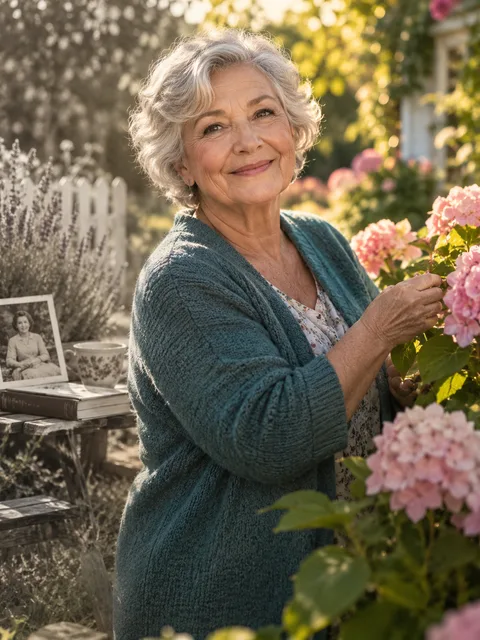
Bring a still portrait into a short moving scene
To animate old photos, start with a recognizable face and a modest action. The Bring to Life configuration requests subtle breathing, a blink, a gentle head turn and a warm smile. When you animate old photos, these movements are generated from the visual reference rather than retrieved from a hidden recording. The original age, clothing and setting are requested to remain recognizable.
You can animate old photos for a private family keepsake or a clearly labeled creative edit. A still portrait provides no direct evidence of how someone moved or sounded. Keep that distinction visible when you animate old photos, especially if the person is no longer alive or the photograph is the family's only remaining reference.
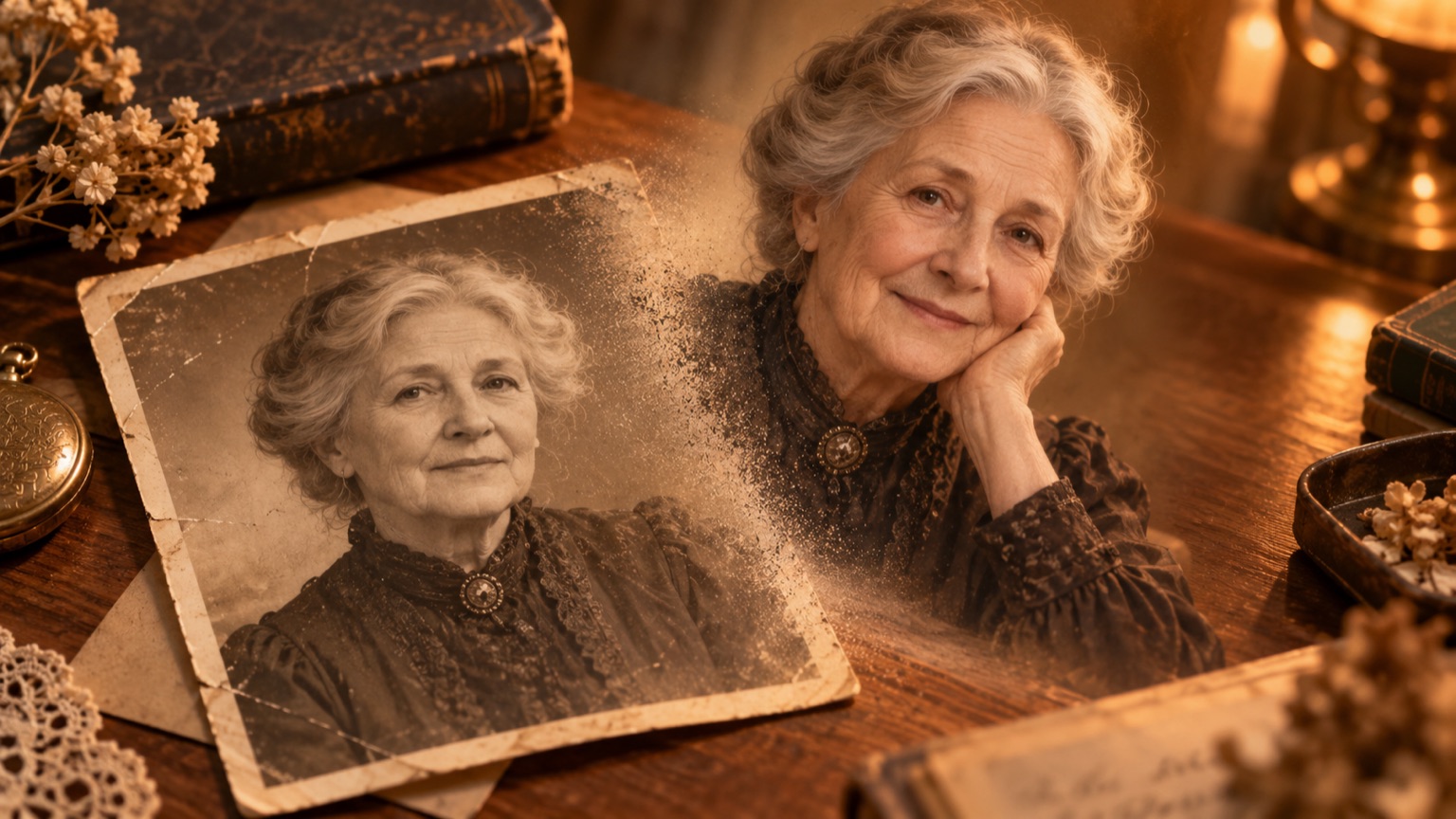
AI-generated concept artwork for animate old photos; this illustration is not a recorded product result.
How to animate old photos from one picture
The tool is already set to one-photo mode so you can animate old photos without inventing a second subject. Add a scan or clear digital photograph of the print. Keep Bring to Life selected and inspect the model, duration, quality and framing. Before you animate old photos, read the quote for that exact setup and confirm you can use the photograph.
After submission, wait for the task's actual status rather than treating a temporary refresh error as a failed render. When you animate old photos, the completed file is the result to evaluate. Download it, watch the entire motion and keep it separate from the original scan. Save both files before deciding whether to animate old photos again with a different crop.
Prepare the print before asking it to move
When you animate old photos, glare on a photographed print can obscure an eye or flatten facial detail. Place the print on a stable surface, use even light and hold the camera parallel to it. Check the digital copy at a useful size before you animate old photos; an attractive thumbnail can hide blur or reflections.
Crop borders and unrelated faces when they distract from the intended portrait. Leave enough of the shoulders and clothing to understand the person's pose. To animate old photos faithfully, do not reshape the face into a different idealized appearance during preparation. Keep a copy of every edit so you can compare what changed before you animate old photos.
Animation and restoration answer different questions
You may animate old photos that are monochrome or show signs of age, provided the intended face remains readable. Animation creates movement; restoration addresses damage or missing detail in the still image. This page helps you animate old photos, but it does not offer a separate automatic scratch-removal or colorization workflow.
If damage hides the face, prepare a cleaner reference before you animate old photos. Any restoration can introduce new interpretation, so compare it with the original rather than assuming added detail is historically accurate. Keep labels on restored copies and generated clips. The decision to animate old photos should not erase which parts came from the actual photograph.
Compare the beginning, turn and final expression
When you animate old photos, inspect a familiar feature during motion: the hairline, jaw, glasses or a distinctive expression. A face can look correct when still and drift when turning. Pause at several moments after you animate old photos, then replay at normal speed to check whether the movement remains smooth.
Also check the background and clothing when you animate old photos. Small details may appear to ripple or change as the person moves. Decide which changes would matter to your family before making another request. Trying to animate old photos at a higher resolution does not by itself prove better identity preservation or historically accurate motion.
A moving portrait or a reunion?
Choose this page to animate old photos with one primary face and restrained movement. If your goal is contact between two people, the hug generator uses a different action. For an imagined meeting with someone who has died, the memorial hug page explains the specific setup and sharing considerations.
You can animate old photos and later place the clip beside genuine family photographs in an editor. Make the synthetic portion clear in its caption. Before you animate old photos for a group tribute, ask the intended viewers whether they want to see a moving interpretation. Photo preparation provides further reference checks.
Questions when you animate old photos
Is the movement historically authentic?
No. When you animate old photos, the model invents movement from the visible portrait. It does not know what happened immediately after the photograph. Describe clips that animate old photos as generated interpretations, not recovered archive footage.
Can I animate a group photograph?
To animate old photos with several people, every intended face needs to remain readable. The one-photo mode does not establish reliable control of a large group. Begin with a clear individual portrait if your goal is to animate old photos with subtle, inspectable motion.
Does the person speak in their own voice?
No voice recording is supplied when you animate old photos here. Generated sound is not a reconstruction of the person's voice. If you animate old photos for a tribute, keep that audio distinction clear alongside the visible generated movement.
Is the animation free?
The available quote is shown before you animate old photos. Check pricing and the current account balance rather than assuming an allowance covers a render. Choose to animate old photos only after reviewing the requested deliverable and its cost.
Sources
- Current site creator, scene settings and photo workflow, reviewed October 6, 2026.
- Photo preparation guide and output specifications.
- RapDuo topic page, reviewed for page structure and search intent; its product specifications are not specifications for this site.