
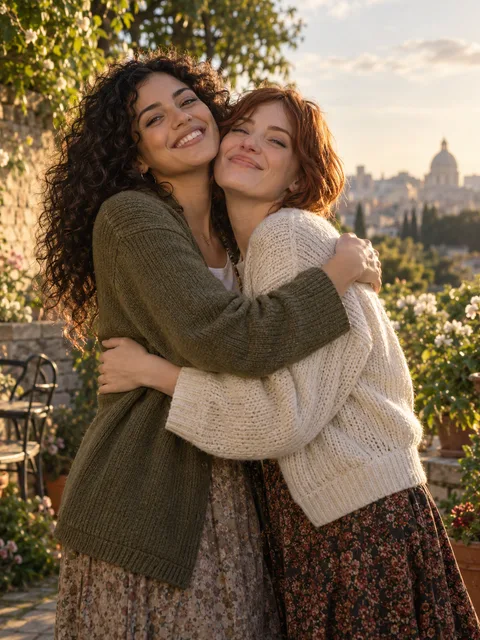
The short answer: a family moment from your photos
An AI Family Video brings a small, specific family moment into motion. Start with two people for a hug, choose a quiet dance for a pair, or animate a solo portrait with subtle blinking and breathing. The setting and movement are generated; they do not document an actual reunion. An AI Family Video can be a personal greeting without claiming to recover lost footage.
The AI Family Video page groups existing scenes around family uses. It does not introduce a separate family model or promise to animate an entire household at once. Hug is the starting scene. Switching scenes changes the requested movement and its requirements, so decide who should appear before preparing the photographs.
Plan an AI Family Video around one relationship
A useful AI Family Video starts with a simple intention: two siblings meeting after time apart, a parent and adult child dancing, or a grandparent smiling toward the camera. One readable action usually communicates more than several unrelated events squeezed into a short clip. Think about the recipient before deciding on a dramatic setting.
For an AI Family Video about distance, an embrace gives the imagined meeting a clear beginning and ending. For a quiet celebration, Slow Dance asks for a respectful hold and gentle sway. Bring to Life offers the AI Family Video a more restrained alternative when you want one photographed person to remain in their recognizable surroundings.
Prepare an AI Family Video in three steps
- Choose the people. The AI Family Video opens with two portrait slots. Add one person per image, or switch to one shared photo containing the two intended people for a hug. Avoid a crowd from which the model would need to guess the cast.
- Choose the action. Keep Hug, select Slow Dance, or pick Bring to Life for a solo portrait. Review duration, format and quality after changing the AI Family Video scene; a new selection may change the quote and photo mode.
- Review and submit. Confirm image permission, check the current cost and use the AI Family Video button when ready. After completion, watch the entire downloaded clip, including its ending, before adding it to a message or montage.
Five AI Family Video uses with different movements
A greeting across different cities
Use an AI Family Video with Hug when two relatives cannot meet for a birthday or holiday. The scene asks them to approach and hold a natural embrace in a warm garden. Their appearance comes from the references, while contact and setting are invented. Describe the AI Family Video as a creative greeting when you share it.
A gentle parent and child dance
Slow Dance makes an AI Family Video around two people swaying together, with room to see their hands and body movement. Clear upper-body references help you compare scale and posture. This AI Family Video scene does not recover the choreography of an old wedding or copy a particular recorded dance.
A portrait from the family album
Bring to Life gives an AI Family Video a small blink, breath, head turn and smile. Use one clear person as the simplest starting point. If the main task is handling faded prints or historical photographs, the dedicated Animate Old Photos guide has a different focus from this family-use collection.
An imagined memorial reunion
A memorial AI Family Video uses Memorial Hug for a comforting home setting and restrained movement. It is a synthetic tribute, not evidence of a meeting or communication from the person pictured. Show a sensitive AI Family Video privately to close relatives before deciding whether it belongs in a public remembrance.
A birthday message with a personal ending
An AI Family Video can supply a short visual greeting that you combine with a written birthday wish in an editor. For spoken names and original birthday words, choose the birthday rap guide. The AI Family Video effects request original instrumental scene sound rather than a personalized spoken greeting.
AI Family Video photo advice and cast limits
Plan an AI Family Video around one person for solo portrait motion or two intended people for an interaction. One file can contain a pair, while two files should each supply one person. These are different upload arrangements, not permission to add more relatives. Build a larger family montage from separate AI Family Video clips in an editor.
Keep faces large enough to compare, with visible eyes and uncluttered shoulders. Similar lighting and head scale can make an AI Family Video easier to assess, but they do not guarantee resemblance. For an embrace, inspect arms at contact; for a dance, inspect the hold and feet. Keep the original references beside the AI Family Video while reviewing.
Related tools for your AI Family Video
Use the AI Hug Generator for focused advice on contact and hands. The memorial page discusses an imagined tribute, while Photo to Video AI starts from ordinary portrait animation. A future-baby scene has a separate purpose and requires two adult references. Choose that page only when the AI Family Video idea involves an explicitly fictional infant.
AI Family Video questions
Can I animate a full family group?
This AI Family Video workflow is designed around one or two intended subjects, depending on the scene. It does not offer reliable casting of an arbitrary group. Crop or choose references deliberately, and assemble multiple AI Family Video clips separately if several relatives need their own moments.
Does an old picture need restoration first?
Not always. A readable scan can be an AI Family Video reference. Severe fading, blur or missing facial detail leaves less information to compare. Restore an image separately when needed, then inspect whether restoration itself changed the person before using it for an AI Family Video.
Is generation free or priced per family member?
The AI Family Video uses the existing credit workflow. Its live quote depends on the selected setup; this page does not promise free generation or a fixed price per person. Check pricing and your balance before submitting. A completed AI Family Video you dislike is different from a task marked failed.
Will the video reproduce the person's voice?
An AI Family Video effect requests original instrumental music and scene ambience. A portrait is an appearance reference, not a voice recording. Review the generated sound before sharing, and use a separate editor if your AI Family Video needs an authorized family recording.
Sources
- Local creator, server-owned scene templates and input validation reviewed October 7, 2026.
- Photo preparation, specifications and pricing.
- RapDuo theme page, used for search intent and section order only. Research recorded in the project's October 7, 2026 competitor analysis; competitor costs and results are not product claims here.