
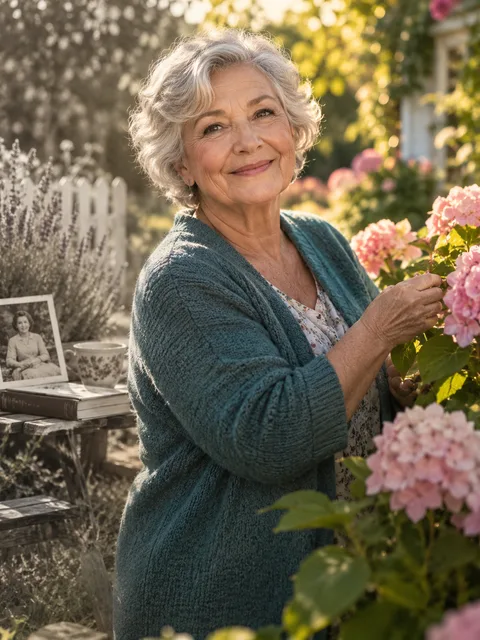
The short answer: choose the motion before you upload
Photo to Video AI turns a still reference into a short generated sequence. The default Bring to Life scene requests a soft blink, natural breathing, a small head turn and a smile, while preserving the recognizable portrait setting. Photo to Video AI also lets you select actions that need different framing or an additional photographed person.
This Photo to Video AI page is an ordinary-photo starting point: decide what should happen, prepare the references and review the resulting motion. It differs from the old-photo guide, which focuses on historical material, and the effects directory, which organizes scene choices. A new background or pose is generated rather than recovered from the photograph.
Which Photo to Video AI motion fits your image?
Use Photo to Video AI for small movement when the face should remain the center of attention. A breathing portrait can suit a profile greeting or a simple keepsake. Large actions ask the model to invent more unseen body detail. Choose Photo to Video AI movement that matches both your intention and the information visible in the reference.
A hug changes the relationship between two people; a dance adds body rhythm; Earth Zoom changes camera scale. Those Photo to Video AI choices do not merely apply different colors to the same animation. A close portrait is a sensible starting point for micro-motion, while a dance benefits from more visible clothing and legs.
Three steps through Photo to Video AI
- Add a reference. Photo to Video AI starts with one image and Bring to Life. Choose a clear solo portrait for the simplest cast. For a paired interaction, use one shared photo of two people or the two-photo mode with one person in each slot.
- Select the result. Keep the portrait scene or choose a hug, dance or pullback. Review the Photo to Video AI settings after changing scenes, including length, aspect ratio, quality and the displayed cost. The selected scene determines the request.
- Generate and review. Confirm image permission, then submit the Photo to Video AI setup when ready. Download the completed video and watch its opening, middle and ending. Compare faces with the input instead of judging only one attractive frame.
Results you can request with Photo to Video AI
A portrait that breathes and smiles
Bring to Life keeps Photo to Video AI focused on small movements around the original appearance. The camera stays stable and the person should remain recognizable through a blink and slight turn. The Photo to Video AI template asks to preserve age, hair and clothing; these directions are not a guarantee that every detail survives generation.
Two people meeting for a hug
For a paired Photo to Video AI scene, Hug asks two photographed people to approach and embrace. Use a clear shared reference or two separate portraits. The hug guide explains why hands and overlapping arms deserve attention. Photo to Video AI should not invent a partner from a solo portrait for this purpose.
Slow dancing or a brighter dance scene
Slow Dance requests gentle swaying with a readable hold, while other dance scenes introduce different surroundings and rhythm. Check feet, hand placement and whether both people remain active. A Photo to Video AI dance is generated choreography; uploading a portrait does not supply a precise movement reference from an existing performance.
A camera journey toward Earth
Earth Zoom starts close to the subjects before pulling away toward a landscape and orbital view. This Photo to Video AI choice emphasizes camera movement rather than interaction. The wider world is generated; it is not a geographical reconstruction of where the photo was taken. Read Earth Zoom Out before choosing that result.
Photo to Video AI reference advice
Prepare Photo to Video AI with an uncropped face, visible eyes and enough detail to recognize hairstyle and clothing. A clean source is easier to compare with the output than a heavily compressed screenshot. Avoid hands across the face or several tiny faces competing for attention. Photo to Video AI cannot reveal reliable information that was never captured.
The uploader accepts JPEG, PNG and WebP within its displayed size limits. Use a straightforward image rather than a collage. For Photo to Video AI interactions, similar scale and lighting can make comparison easier. A full-body reference is useful for movement involving feet; you do not need to invent a full-body photograph for a simple portrait blink.
Photo to Video AI, old prints and rap videos
Photo to Video AI works as a general entry for contemporary portraits and readable scans. For damaged or faded prints, consult Animate Old Photos and restore missing detail separately if needed. An animated scan does not become historical footage. Keep that distinction visible when sharing Photo to Video AI results from a family album.
Choose a rap video when original words and a performance carry the message. Photo to Video AI effects instead request scene-appropriate instrumental sound. The same creator can prepare both, but a dancing portrait is not automatically a singing performance. Select the matching scene before expecting speech, lyrics or synchronized mouth movements.
Related tools after Photo to Video AI
The effects directory compares available actions, while AI Family Video organizes personal uses. For wardrobe transformations, the ceiling-fan page explains a separate multi-change scene. Use these guides when Photo to Video AI needs a more specific result, rather than adding several conflicting actions to one short request.
Photo to Video AI questions
How many people can Photo to Video AI animate?
Plan Photo to Video AI around one or two intended people. One image can be a solo photo or a clear pair, and two slots should each supply one person. The action matters: a hug requires two people even when Photo to Video AI receives only one shared file.
Can Photo to Video AI use a longer clip or another format?
Use the options available in the Photo to Video AI quality panel. The displayed choices and live quote are the source for current duration, resolution and aspect ratio. Longer requests provide more timeline space, but Photo to Video AI does not promise better identity or anatomy solely because duration increases.
Can I give detailed instructions or choose a song?
The current Photo to Video AI workflow exposes scene details rather than an unrestricted replacement for the template. Compatible details should support the selected action. It has no personal song-upload control. Photo to Video AI requests original scene music; add an authorized track afterward in a separate editor if needed.
What does Photo to Video AI cost and download?
Download the completed MP4 from the Photo to Video AI result. Check its actual dimensions and audio before exporting another version. The live credit quote and pricing describe cost; this Photo to Video AI page promises no fixed fee, unlimited free allowance or completion time.
Sources
- Local creator, server-owned scene templates and input validation reviewed October 7, 2026.
- Photo preparation, specifications and pricing.
- RapDuo theme page, used for search intent and section order only. Research recorded in the project's October 7, 2026 competitor analysis; competitor costs and results are not product claims here.